Setting up a webinar
Registration page, reminders, lobby, and the live session.
At the top of the Webinar page is your next webinar: the date, time remaining, number of registrations (split into the last 24 hours and the last 7 days, and against your target if you entered a capacity), and the Go live, Registration page, and Copy link buttons. Once the broadcast starts, the button becomes Enter studio. Editing, registrants, and deletion are in the … menu at the top right of the card.
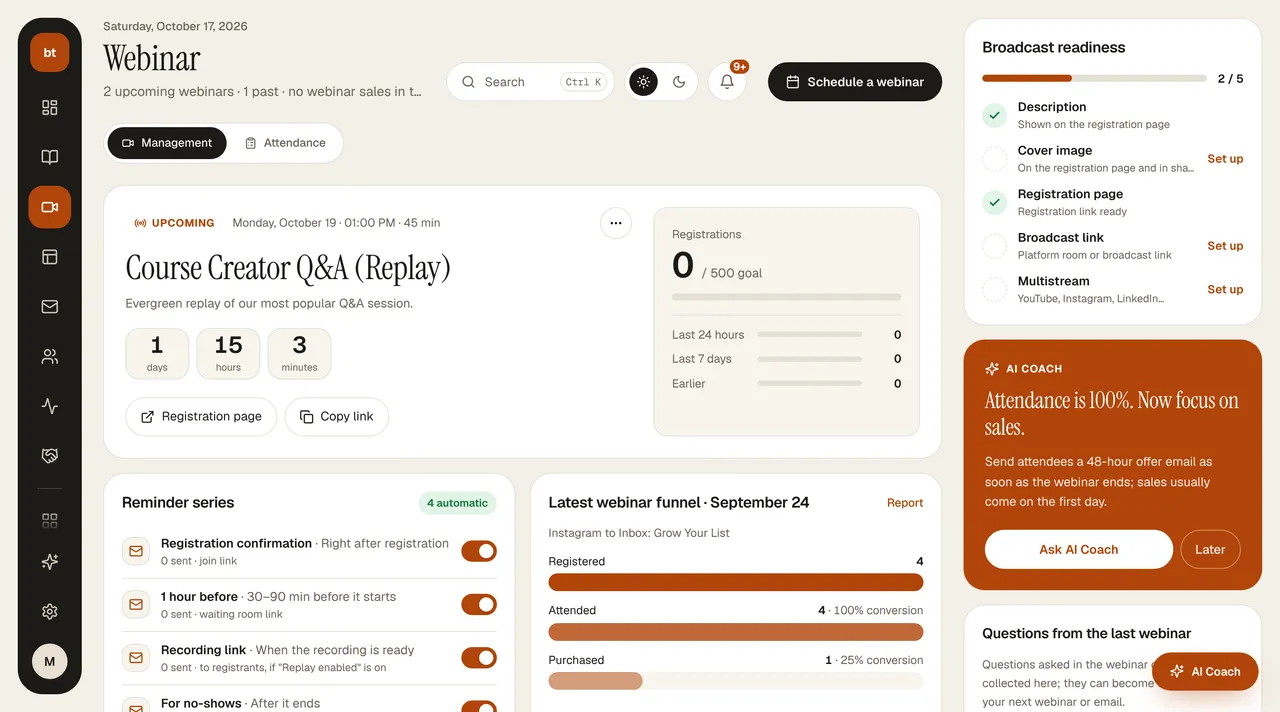
- Reminder series: the registration confirmation, a reminder 30–90 minutes before the start, a personal replay link sent when the recording is ready, and a follow-up email to people who didn't attend all go out automatically; it shows how many people each was sent to. The Webinar no-shows automation is triggered for people who missed it. You set up an email automation for the 1-day-before reminder and offer emails. For the recording to open on the live page, Replay active must be turned on in the webinar settings.
- Latest webinar funnel: registration → attendance → sales for the most recently ended webinar. A sale is a purchase made by a registrant within 7 days after the webinar.
- Past webinars: registrations, attendance rate, sales, and revenue for each webinar; if there's a recording, Watch recording. A webinar that you close without clicking End, or that you never started, automatically switches to “Ended” 6 hours after its scheduled end; it no longer appears in upcoming webinars or on your link-in-bio page. Automated (evergreen) webinars are not included.
- Right column: broadcast readiness (description, cover, registration page, broadcast link, multistreaming), an AI Coach suggestion, and the questions asked in the chat of the latest webinar.
- AI notes: if you turn on the AI webinar agent from this tab in the webinar's details, a summary, questions, objections, and a suggested follow-up email are prepared when the webinar ends.
- Webinar › Schedule a webinar. Enter the title, date, time, and capacity.
- In the Cover image field of the webinar form, upload an image, choose one from the library, or Generate with AI (from the title, 1 AI credit). The cover appears on the registration page, in the portal, and in shares.
- Create the registration page with Page Studio (page type: Webinar). The page comes with the registration form and a KVKK (Turkish Personal Data Protection Law) consent checkbox ready.
- People who register receive the lobby link both on screen and by email; reminder emails go out automatically.
- At the session time, click Go live, then Enter studio. Attendees enter the room with the Join room button on the live page; the room is open only while the broadcast is live and is closed for an ended broadcast.
- In the studio, choose your presentation from the Presentation card on the right and click Open presentation window. In the room, click the share screen button and choose the “Presentation · …” window from the Window tab. Advance the slides with the arrows on the card; your speaker notes are visible only to you. Attendees, the recording, and multistreaming all see the same slides.
- The recording you start with Record in the room is automatically added to the Asset Library (with the RECORDING label) when the webinar ends, and is linked to the replay address if it's empty. Processing can take a few minutes; if you don't want to wait, click Fetch recording in the Past webinars table. Room recordings are deleted if not retrieved within 7 days, which is why they're retrieved automatically.
- You can add registered attendees to a follow-up sequence with the Webinar Registration trigger.
- In the Webinar › Attendance tab you see who attended and who didn't; the attendance rate is calculated only from sessions whose date has passed, and upcoming registrations count as “Pending”.
- For per-webinar detail, the Report link in the funnel opens Webinar statistics; all events are in Analytics › Events.
Sales structureWebinar pages and follow-up emails are generated according to a proven webinar sales structure: value, story, offer, objections, close.
Ready-made registration page (/w/…)Every webinar has a ready-made registration page, with your school's name and color, at
your-school-address/w/webinar-name (on your custom domain if you have one, otherwise on yourschool.bilgiticareti.com). Copy registration link gives you this address. The link of a draft webinar says “not live yet” until you set a date and schedule it. Lines in the description that start with - are listed on the page as In this session items; the host section comes from the instructor profile in your Brand Kit. If you entered a capacity, the page shows “… spots left” for the last 20 spots, and the form closes when it's full.