Multistreaming (YouTube, Facebook, Twitch, and more)
Send your live stream to multiple platforms at the same time.
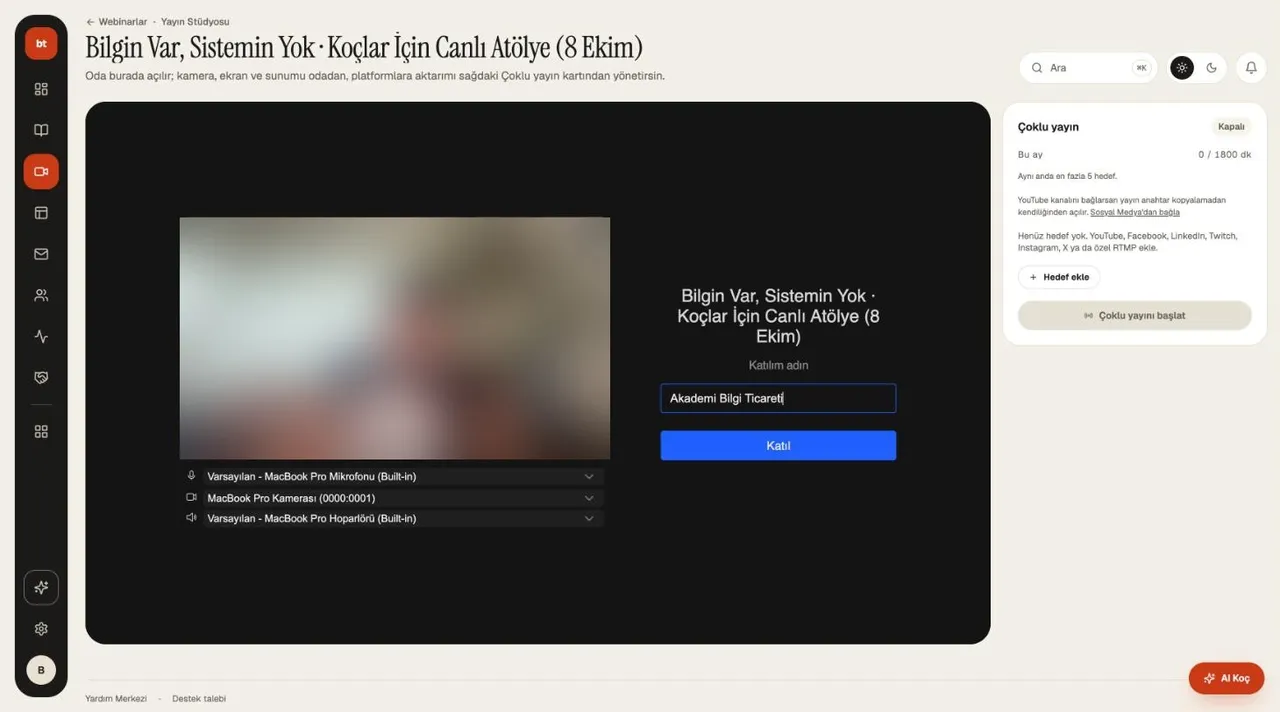
- In Webinars, open your webinar and enter the broadcast studio; in the Multistream section, press Add destination.
- Choose the platform (YouTube, Facebook, LinkedIn, Twitch, Instagram, X, or a custom RTMP) and paste the server address and stream key from the platform's live streaming settings. You can also connect your Twitch channel without copying a key.
- When you press Start multistream, your video goes to all the destinations you added at the same time.
How many destinations you can stream to at once and how many hours per month depend on your plan (Plans). Stream keys are stored encrypted. LinkedIn, Instagram, and X give you a new address for every stream; update it before going live.
Key by platform
- Facebook: go to
facebook.com/live/producer› Streaming software › turn on and copy the Persistent stream key. You add a persistent key once; it doesn't matter whether it's a Page or a profile. - Twitch: if you've connected your account, the key is fetched automatically.
- When you add a destination, a short guide for each platform is shown below the form.
One comment feed
In the comments panel of the broadcast studio, YouTube and Twitch comments appear in the same feed, labeled with the platform; you don't need to switch between two screens.