Presentations: create, edit, use in a webinar
AI presentations, the slide editor, speaker notes, live presenting, and recording.
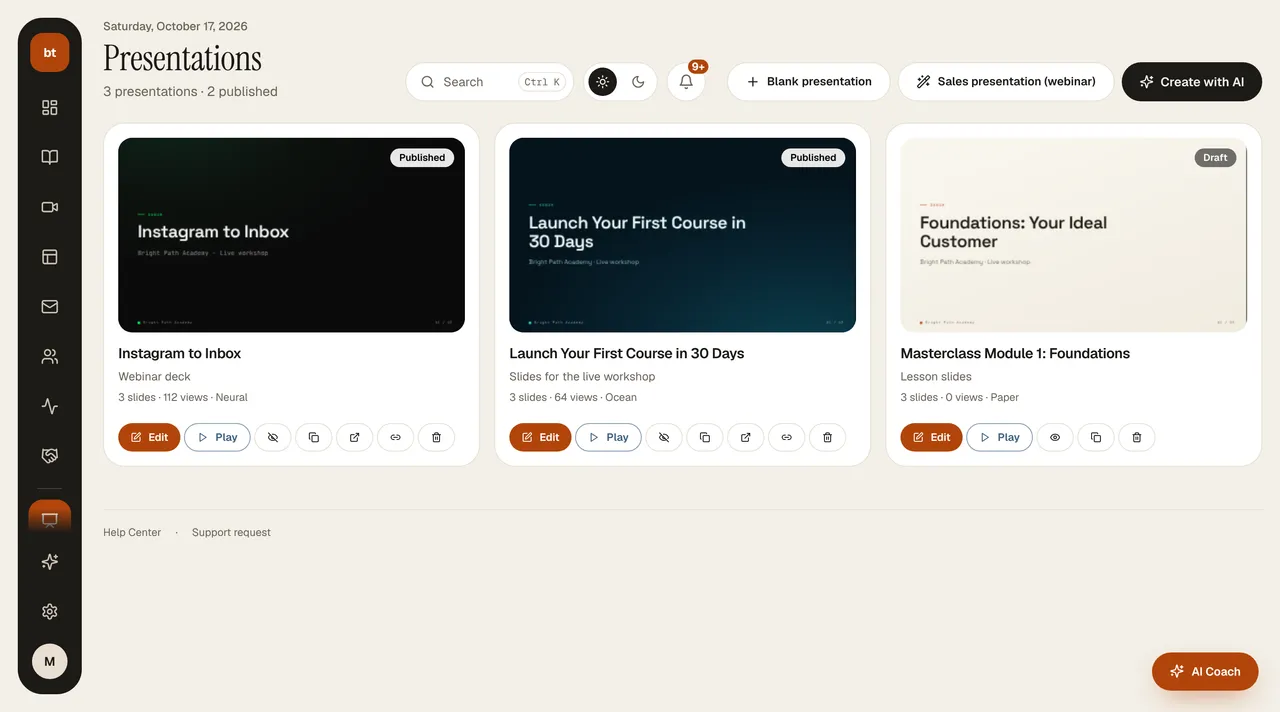
Studio › Presentations opens with your presentation cards. There are three ways to start a new presentation: Create with AI (topic, number of slides, audience, and goal; 4 credits), the Sales presentation (webinar) wizard (a deck with a sales close built from your offer and story), or a Blank presentation (from a template).
Editor
- Slides on the left appear as real thumbnails (a scaled-down version of the published rendering); the presentation cards also show the first slide's image. Click one, or use Add slide to pick a type and insert it in between.
- Stage in the middle: identical to the published view. With the buttons at the top you move a slide up/down, duplicate it, or delete it. Below it is the Speaker note: only you see it during live presenting and recording.
- Change this slide (on the right): instructions such as “Less text”, “Turn it into a story”, and “Split in two” fill the box; you can also write your own and apply it with the arrow (2 credits). “Add image” turns the slide into an image slide. Below it is manual editing: type, title, content, image/video, background color.
- Structure: each “Title” slide starts a new section; the sections and their slide counts are listed, and clicking one takes you to that section.
- Presentation settings: title, theme, transition effect, the live switch, and the publish link.
Changes are stored when you press Save; if the header says “unsaved changes,” you haven't saved yet. Use in webinar links the presentation to the webinar you choose; it is ready in the Presentation card in the Broadcast Studio (you can also pick or change the presentation from the studio). The selected presentation and view stay in the address bar.
Present live and record
The Present live and record selector at the top of the editor plays the presentation in full screen; the speaking text appears below the stage and in a separate window. With the Recording Studio, you record audio, turn the video into a lesson in your course, or link it to an automated webinar.
Camera bubble
A microphone is required for recording. Before you start, pick your device from the microphone list and press Test microphone: the bars should move while you speak. If the bars don't move, there will be no audio in the recording; pick another microphone (on Mac, Zoom/Teams virtual devices or headphones that aren't connected can end up as the default). If no audio comes in for 8 seconds during recording, a warning appears. When the recording ends, the video is saved to the Asset Library automatically; you can also take it to your computer with Download. When the Camera bubble is on, your round camera image sits on top of the presentation and is included in the recording. With Preview and position, drag your image and drop it in the corner you want; choose its size with Small / Medium / Large. You can also move it or turn the bubble off during recording.