Automation rules and triggers
Decide which series starts, for whom, and when, once an event happens.
An automation rule has three parts: a trigger, a filter, and a delay. All rules are in the Email & Automation › Automations tab; with the selector at the top you switch between List and Flow view (flow view shows each rule as a trigger → wait → series chain).
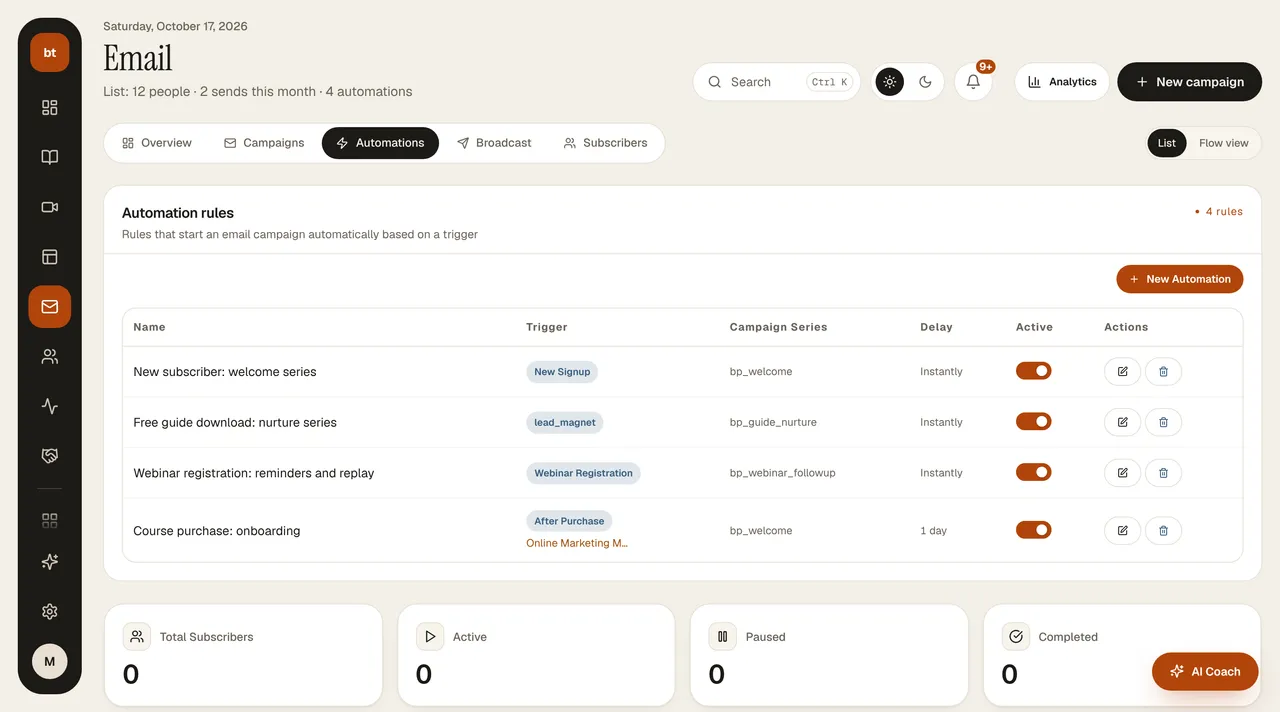
| Trigger | When it runs |
|---|---|
| New Signup | A signup from a form (can be filtered by source tag: ebook, page form, appointment, waitlist) |
| Form Submitted | Someone fills in a form from the Forms module with their email (can be filtered by form; see Forms and surveys) |
| Webinar Registration | A registration for a webinar |
| After Purchase | A card payment, bank transfer confirmation, or free enrollment (can be filtered by product) |
| Appointment Booked | An appointment was booked (can be filtered by call type) |
| Appointment Completed | You marked the call as “Completed” |
| No-show | You marked the call as “No-show” |
Send a Telegram message: you can add a Telegram step to a rule; when the trigger fires, a message goes right away to the group you chose or to your own Telegram (no delay is applied). A rule that only sends a Telegram message doesn't need an email series. See Telegram.
Why the delay matters
A transactional email is already sent at the moment of signup and purchase. If you set the welcome series to 0 minutes, the customer gets two emails at the same time. We recommend starting the series with a delay of 1440 minutes (1 day).