Design Studio, presentations, and UGC video
Visual editing, AI presentations, and talking-person videos.
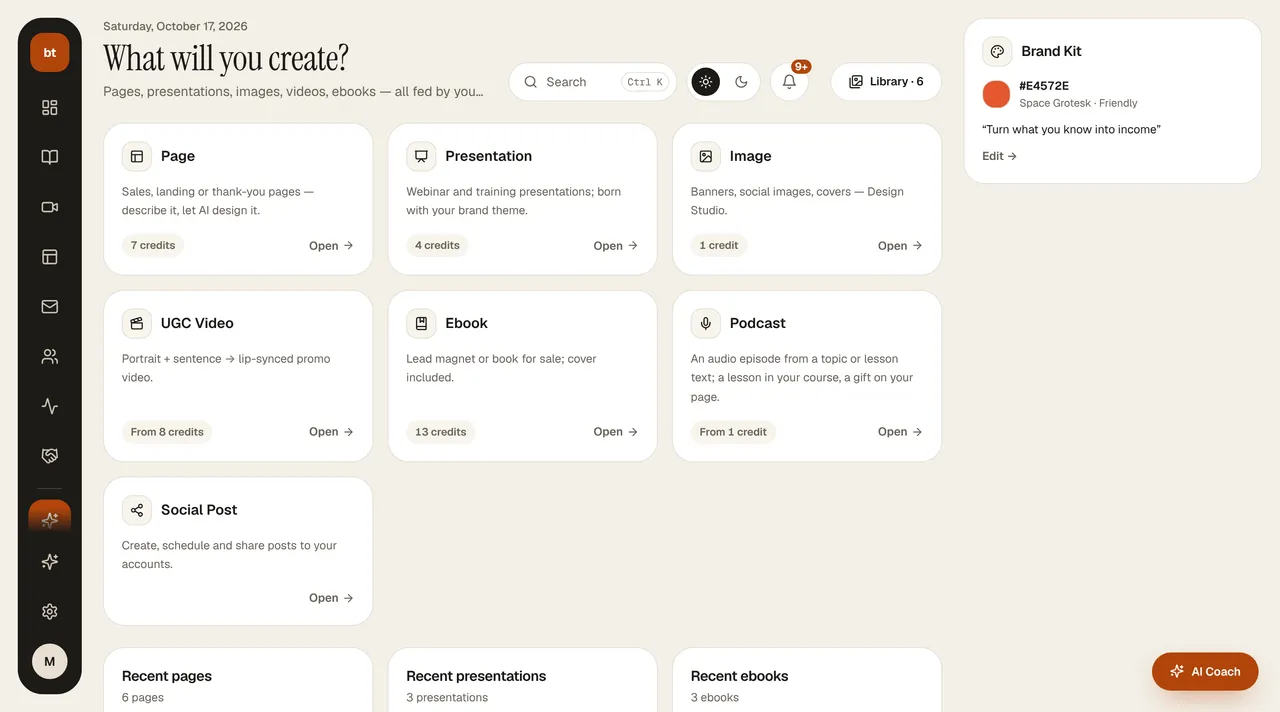
- Design Studio › New image: choose the type (course cover, ebook cover, Instagram post, story, webinar poster, YouTube thumbnail…) and write the topic in one sentence. The AI prepares 3 options with your brand color and a photo that fits the topic (1 credit); you pick one.
- Image for a course: when preparing a course cover, YouTube, Instagram, banner, or webinar image, choose your course from the Which course is it for? box. The AI reads the course's name, description, and curriculum and writes accordingly; numbers such as the lesson/section count come only from the real information in your course. You don't need to write a topic; add something if you want to emphasize it.
- Make it the course cover: while editing a 16:9 image, choose the course in the Make it the course cover box on the right and press Set as cover. The image is saved, and the course's cover on its sales page, in the catalog, and in the student dashboard changes to it.
- Quick edit: tap text or a photo in the preview and its field opens. Change the text, pick a photo from Unsplash or upload your own, change one of the color circles (it changes everywhere in the design). In the Tell the AI box, type things like "shorten the headline" or "darker background" (1 credit; if you don't like it, Undo). It also works comfortably on a phone. Save, download PNG.
- Advanced editor (computer only): a free-form canvas — add shapes, move, resize, and order layers.
- Presentations: write the topic and the AI generates the slides (4 credits), which you edit in the editor; a revision is 2 credits.
- UGC video: short promo videos. Standard quality (720p) is 8 credits, high quality (1080p) is 24 credits.
- Voiceover: 1 or 2 credits per 1,000 characters. Background removal is 1 credit.