Social media content plan
Content ideas, copy, and a calendar for your channels.
The Social Media screen opens on the Calendar tab: each day of this week is a column, and scheduled, published, and draft posts appear as cards. You move between weeks with the arrows; the Month view shows the whole month in one grid. Click an empty day (Empty day) to plan a post for that day; you can write the topic and have AI generate the copy, then pick a time and schedule it. Drafts without a date sit below the calendar, and all posts are in List.
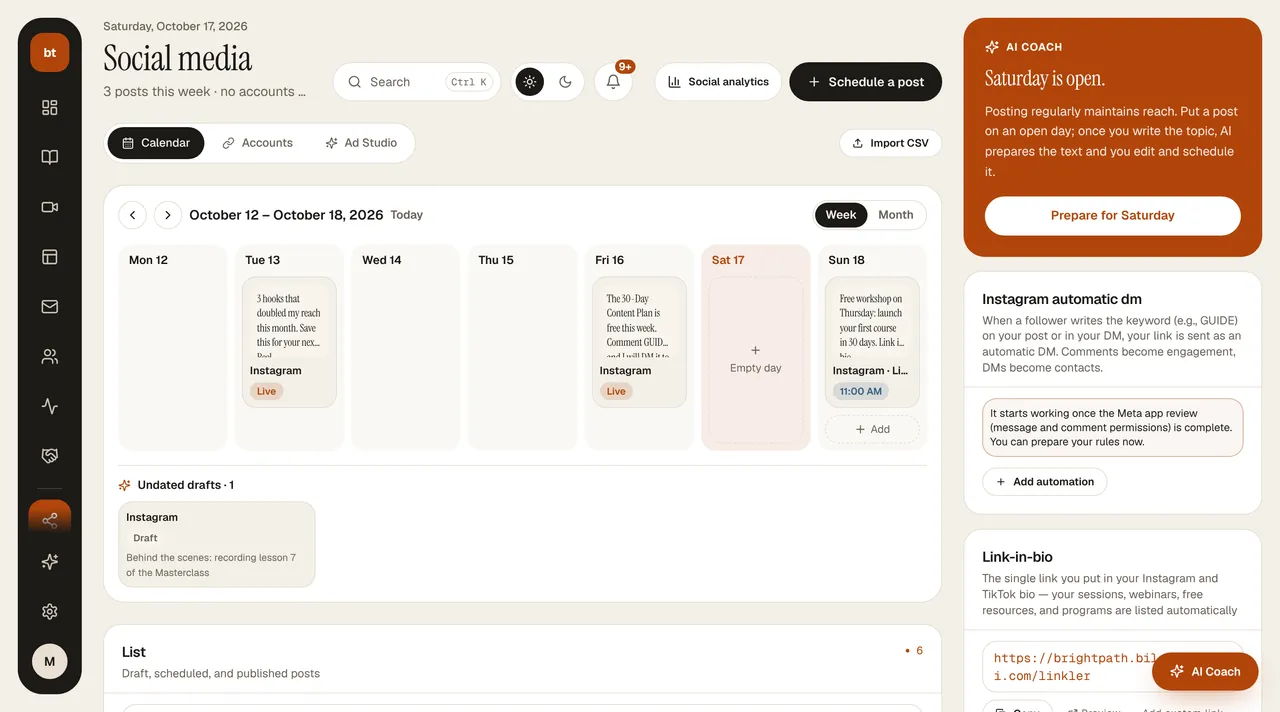
In the right column, AI Coach tells you which days this week are empty and prepares a post for that day with one click; below it are your Instagram automatic DM rules and your Link-in-bio address. To connect an account, use the Accounts tab. You bring images you made in Ad Studio here with “Send to Calendar.”
Publishing numbers are in Analytics › Social: how many posts went out on each platform, a daily chart, and recent posts.
Accounts you can connect: LinkedIn, YouTube, and TikTok. Posts are published directly on these accounts.
Scheduled posts: the posts you schedule are published automatically when the time comes (within 5 minutes at most); on the post card you'll see the SCHEDULED → PUBLISHING → LIVE badges. If a platform rejects a post, the card shows an ERROR badge with the reason; after you fix the problem and click Try again, the post goes back in the queue. YouTube access renews automatically; if you see a "RECONNECT" warning on the Accounts tab, the Google permission has become invalid, so refresh it with Reconnect.