My published change doesn't show on the page
Draft or published, cache, domain.
Every change you make in Studio is first saved to the draft. Visitors see the last published version, not the draft.
- Publish the draft. In Page Studio, press the Publish Draft button at the top (if the page has never been published, the button says just Publish). For pages you built from the Setup Canvas, Publish all on the canvas does the same thing.
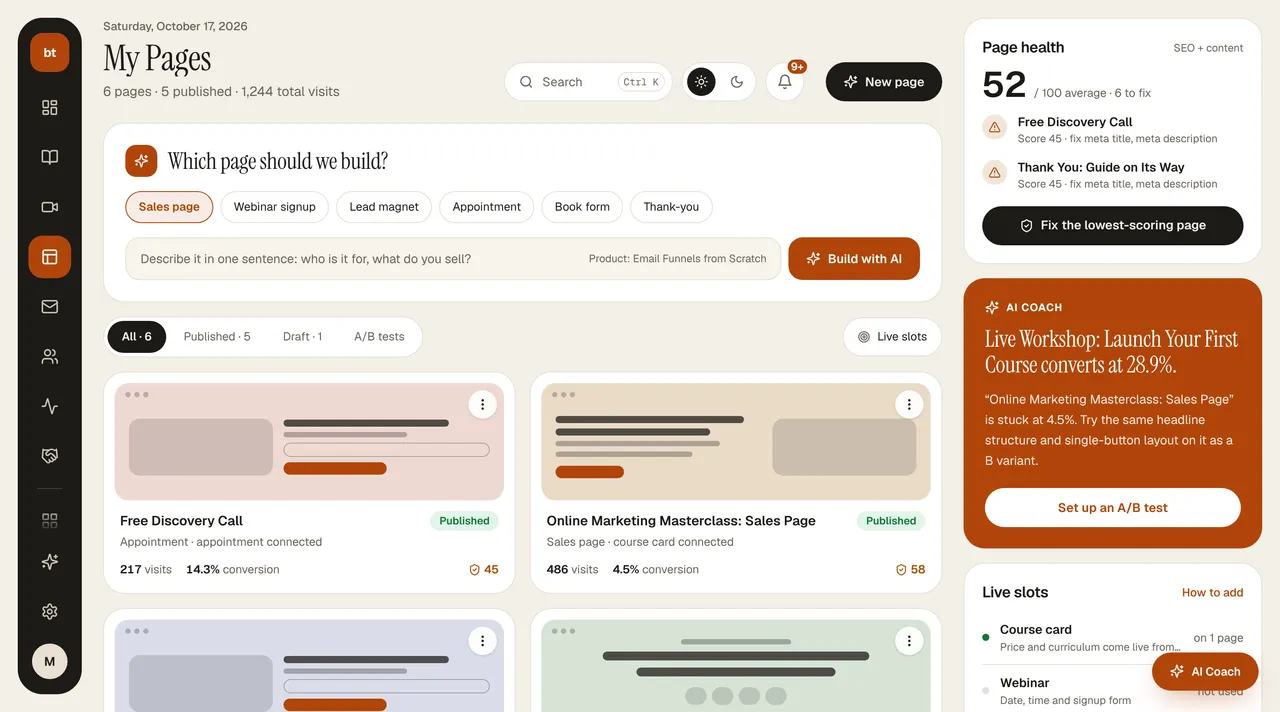
- Check the status. In My pages, the card should say LIVE at the top. If it says DRAFT, the page has never been published.
- Browser cache. After publishing, the page updates within a few seconds. If you still see the old version, hard-refresh the page (Mac: Cmd+Shift+R, Windows: Ctrl+F5) or open it in a private window.
- Is it the right address? Copy the link at the top of the card and open it. An old copy of the same content may be sitting at a different address.
- New domain. If you just connected a domain, DNS propagation can take up to a few hours; during that time some networks may still show the old version.
TipLive · Open in Studio opens the published version in a new tab; this is the fastest way to compare it with the draft. If you change your mind about a change, you can go back to an earlier version with Undo or Versions.