Community, lesson discussion, and course rating
Start a topic, ask questions under lessons, rate a course.
Community
At the top of Community, Feed and the channels opened by the instructor (for example, Questions, Wins, Announcements) appear as tabs. The Ask a question or Write something to the community… box opens the writing window: title (at least 5 characters), channel, and your text (at least 10 characters), Share.
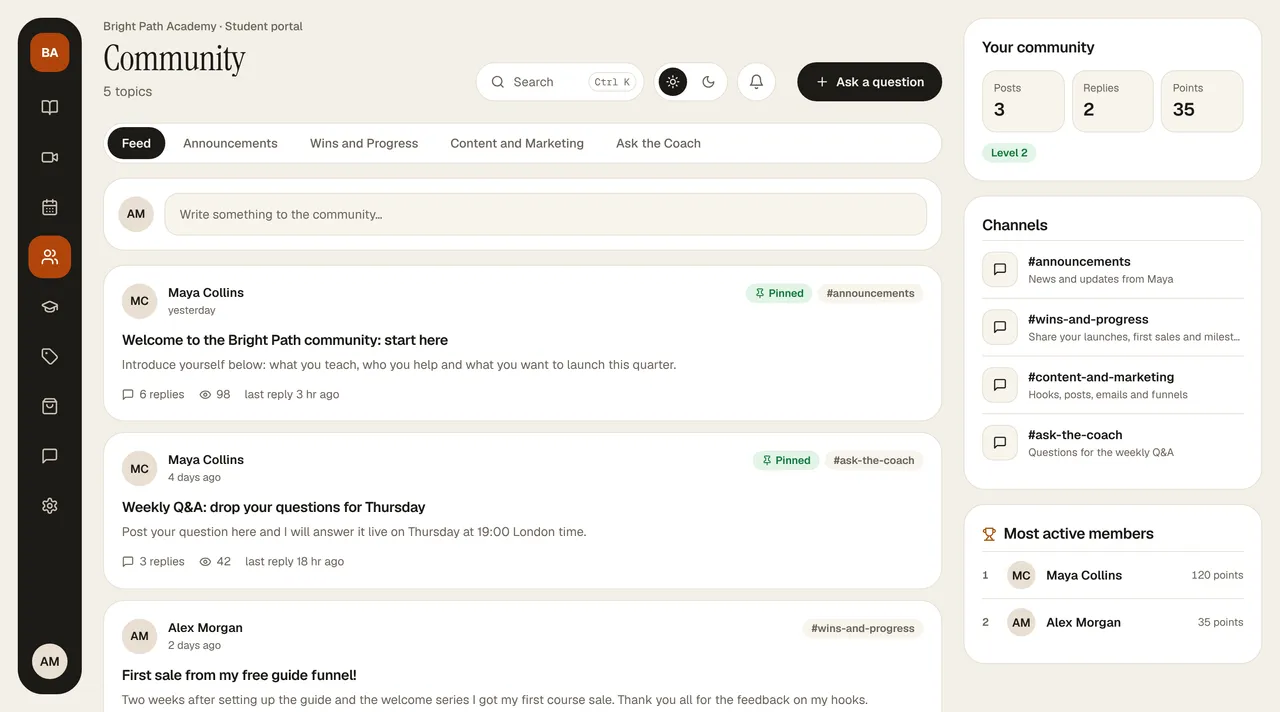
- A post card shows the author, time, Pinned and channel labels, and reply count; a question with no replies says “Awaiting reply”. Click a card to open the post and its replies; you can write a reply and Like replies. You can't reply to a locked post.
- On the right are Your community (your posts, replies, and points), Channels, and Most active members.
- When someone replies to your post, you get a notification in the portal bell and in the app.
Lesson discussion
Under every lesson there is a comment area specific to that lesson (up to 3000 characters, Share). The instructor's replies appear with an “instructor” label. Asking your question close to the lesson speeds up the answer.
Rating a course
When you complete about 20% of the course, a Rate this course box appears in the player: give 1-5 stars, write a review if you like, and click Submit. You can change it later with Update. Your review may appear on the instructor's pages; if the instructor unpublishes it, it says “Your review is not currently visible on the page.”