Getting and downloading your certificate
When you finish a course, your certificate is created automatically; view it, download the PDF, share its number.
When you complete all the published lessons of a course, your certificate is prepared automatically; the message “Congratulations, you've completed the course! Your certificate is being prepared.” appears on screen. You don't need to request it.
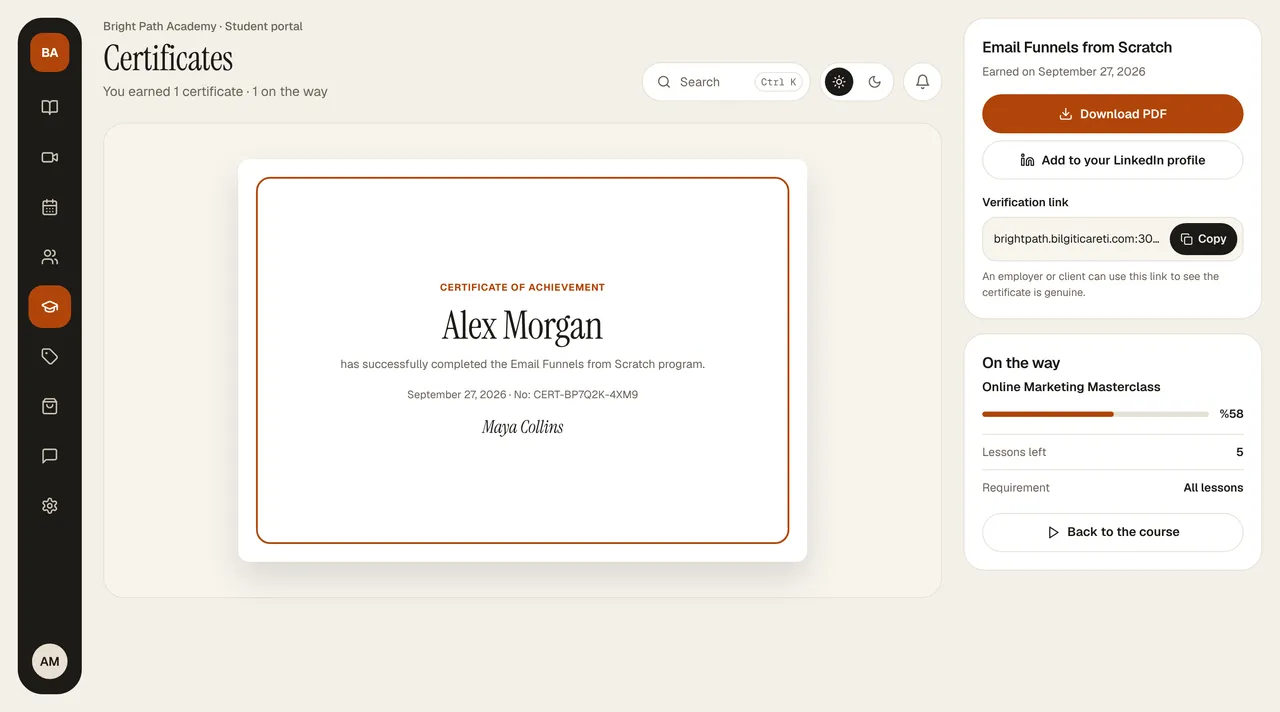
- In Certificates, the certificate itself is shown large; if you have more than one certificate, you choose from the names at the top.
- On the card at the right are Download PDF, Add to LinkedIn profile (LinkedIn's add-certification screen opens pre-filled with the course name, number, and date), and the Verification link. You can take the link with Copy and send it to your employer or client; the person who opens it can see that the certificate is genuine.
- If you have more than one certificate, Download all in the header downloads all of them as PDFs.
- The On the way card shows the course you're closest to finishing, the number of lessons left, and Back to course.
- If the certificate doesn't appear within a few minutes, refresh the page; if it's still missing, a lesson may have been left incomplete, so check your progress in the course list.