Portal sign-in, registration, and password
Creating an account on your instructor's site, signing in, and resetting your password.
Your courses, webinars, and appointments are in the portal on your instructor's site. The portal address is opened by adding /portal to the end of your instructor's domain (for example, brand.bilgiticareti.com/portal). If you aren't signed in, you're redirected to the sign-in screen.
Creating an account
- On the sign-in screen, click Sign up; enter your name, email, and password. The password must be at least 8 characters and contain at least 1 uppercase letter and 1 number.
- Open the verification link sent to your email. You can't sign in without verifying.
- If you like, you can also create an account with one click using Continue with Google.
If you can't sign in
- “This account was created with Google” warning: you opened your account with Google; use Continue with Google.
- If you forgot your password: Forgot my password → set a new password from the link sent to your email.
- If your course isn't showing: make sure you signed in with the email you bought it with. If you bought with a different email, the course appears in that account; write to your instructor.
- If a verification code is requested: two-step verification is on for your account; enter the 6-digit code from the app on your phone or one of your recovery codes.
On the sign-in screen opened from your instructor's site, there is a panel in the school's name, logo, and color on the left and the sign-in or registration form on the right; on a phone, only the form is shown.
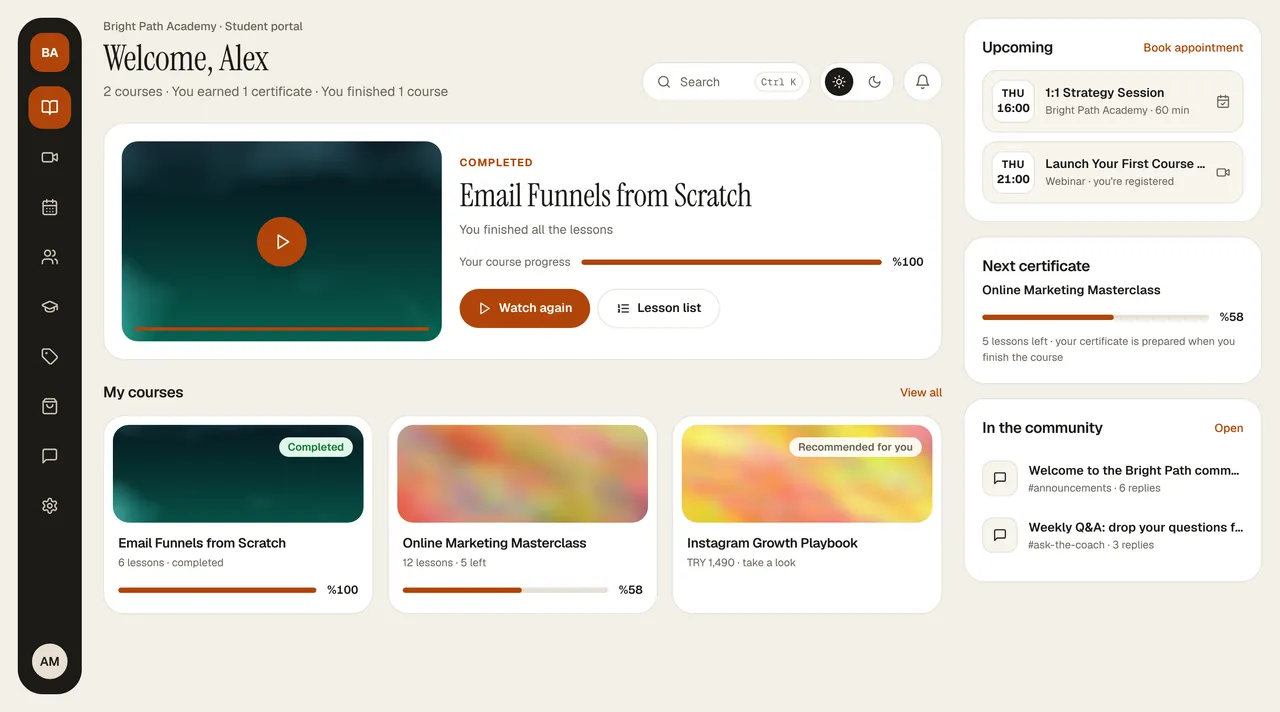
Getting around the portalOn a computer, all pages are in the menu on the left; names appear when you hover. On a phone, tap the menu button at the top left. Search at the top (⌘K / Ctrl K) finds your course or a page, the sun/moon button switches between light and dark mode, and the bell shows new lessons, webinar reminders, certificates, and community replies.