Buying a course: the checkout page and coupons
From the sales page to payment, coupons, bank transfer, and the screens after payment.
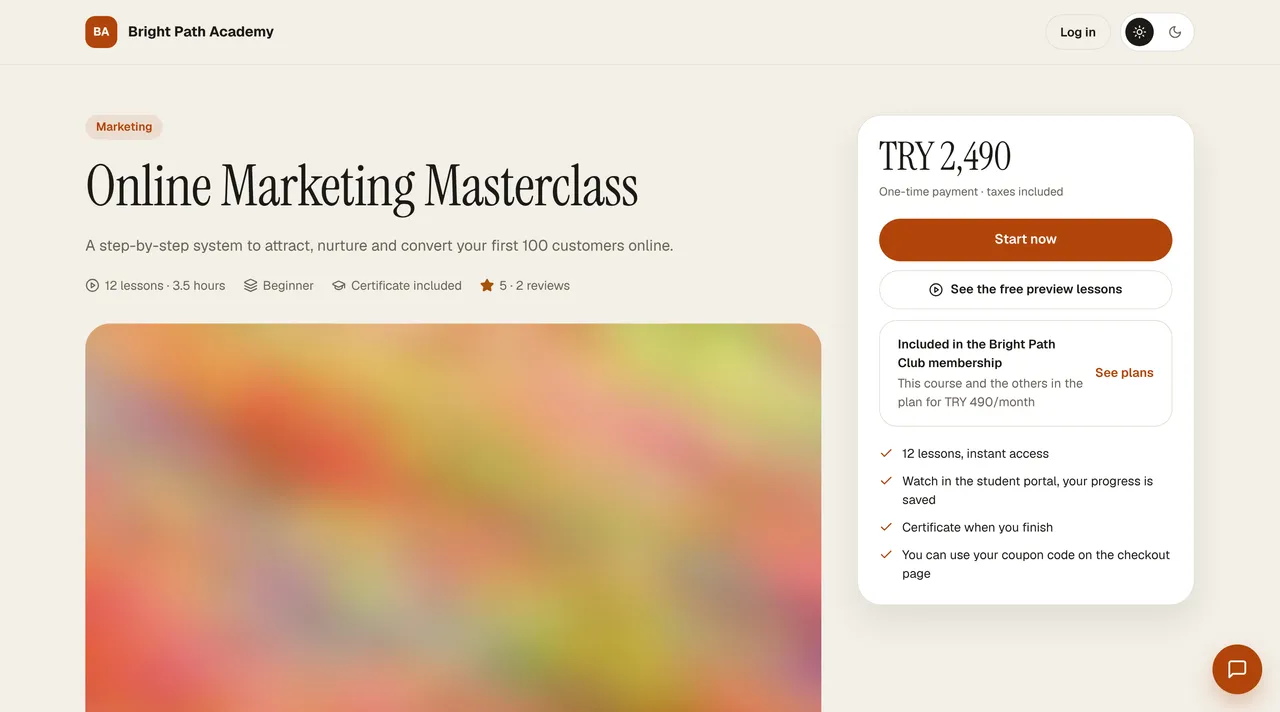
On your instructor's course page, press Start now in the price card on the right; the secure checkout page opens. Three steps appear at the top: Details, Payment, and Confirmation. For free courses, Sign up for free appears instead of the card, and the course is added to your portal right away.
- Details: if you aren't logged in, Log in or Create account; afterward you return to the checkout page. The course you buy shows up in that account.
- Payment: fill in the Billing details (individual or corporate; a tax number is required for corporate). From Payment method, choose Pay by card or Bank transfer / EFT, and accept the two agreement boxes.
- In the summary card on the right, enter your coupon code and press Apply; the discount line and the new total appear. The button becomes Pay … with the amount.
- By card: you go to the secure page of your instructor's payment provider (iyzico or PayTR); card details are entered there, and installment options appear there. After approval, you return to the You're all set screen: Start the course, My orders and invoices, and the order number are shown here.
- By bank transfer: the bank, account holder, IBAN, and reference code appear on the screen. Write the reference code in the description; once the instructor approves the payment, your access opens and you receive an email.
- If the payment couldn't be taken: no money is taken from your card. On the Payment failed screen, Try again returns to the checkout page; with Pay another way you can choose bank transfer.
Buying with a membership
If your instructor sells a membership, a “Included in the … membership” note appears under the price card on the course page; See plans opens the school's Membership page. You choose the monthly or yearly period and press Join; payment is made with the same steps, and the courses included in the plan open in your portal. You see your membership, its end date, and the Renew now button in Orders › My Membership; a reminder email arrives 3 days before it ends. The card is not charged automatically each period; you start the payment yourself to renew.