Booking, joining, and canceling an appointment
Pick a session type, reserve your time; join or cancel from the link in your email.
Booking an appointment
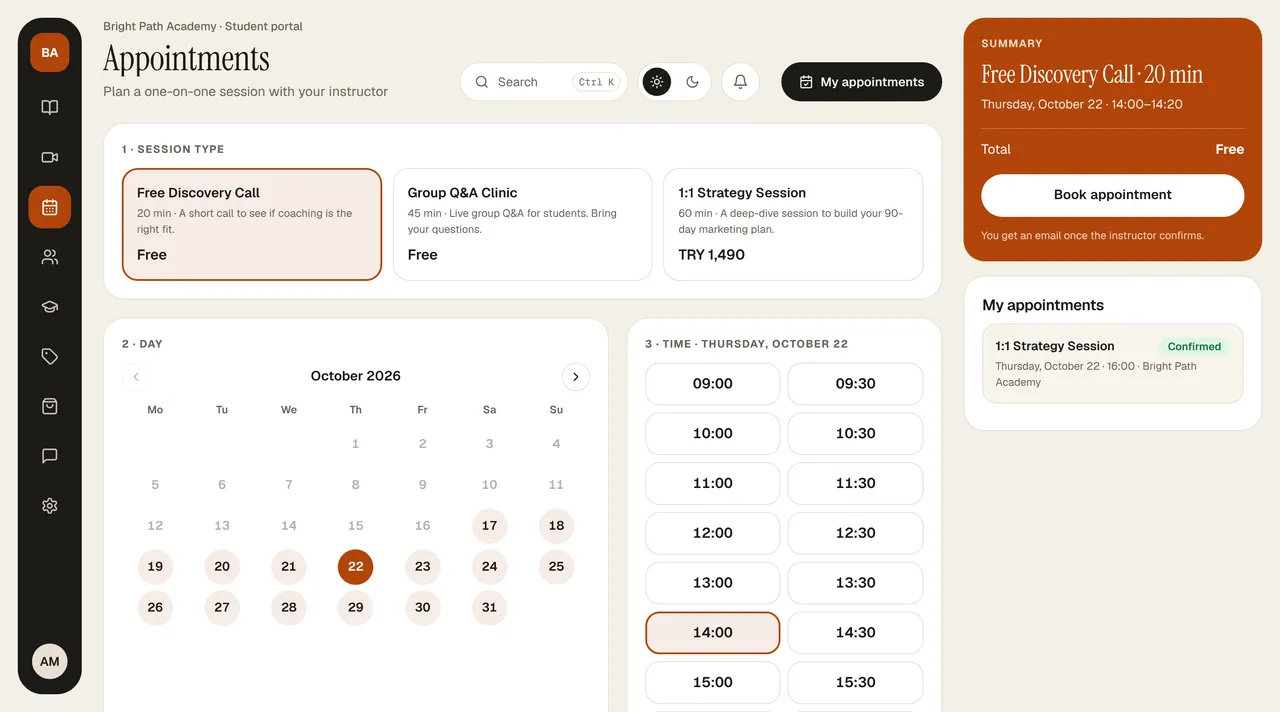
- In Appointments, choose 1 · Session type (the duration and fee are shown on the card).
- 2 · Day: pick a day from the calendar (up to three months ahead).
- 3 · Time: pick one of the available times that day. Times are in Turkey time; booked times don't appear in the list. You can add a note if you like.
- The Summary card on the right shows the session, day, time range, and total amount. If it's free, press Book appointment; if it's paid, press Continue to payment.
- For a paid session, the payment step opens: check the agreement box and choose Pay by card or Bank transfer / EFT. For a bank transfer, put the reference code in the description.
Your appointments appear with their status on the My Appointments card on the right: Confirmed, Awaiting approval, Awaiting payment (with Complete payment next to it), Completed, Canceled.
Joining the session
For a confirmed appointment, a Enter the meeting room button appears; the personal appointment link in your confirmation email goes to the same place. This page opens with your instructor's name and color: on the left, the session's status (Confirmed, Awaiting approval…), its name, time, and duration; on the card on the right, the date, Join the session, calendar buttons, and cancel. The meeting room opens 10 minutes before the start time. It opens in the browser; no app is needed. On the link page, you can add it to your calendar with Google Calendar or Apple / Outlook (.ics).
Canceling and picking a new time
- On the link page from your email, you can cancel an appointment that hasn't started with I can't make it, cancel, then book again with Pick a new time.
- You can't cancel an appointment that has been paid for yourself; write to your instructor through Support.
- Reminder emails arrive 24 hours and 1 hour before.