Creating a course
Add modules and lessons, attach content, generate quizzes with AI, and publish.
The Courses page shows all your courses in one table: status (Published, Free, Draft), student count, completion rate, this month's revenue, and rating. At the top you see total students, students who progressed a lesson in the last 7 days, average completion, and average rating. Click a row to open the course editor; the … menu on the row takes you straight to the Curriculum, Certificate, or Statistics tab. In the editor you switch to another course from the list on the left, and All courses returns you to the table.
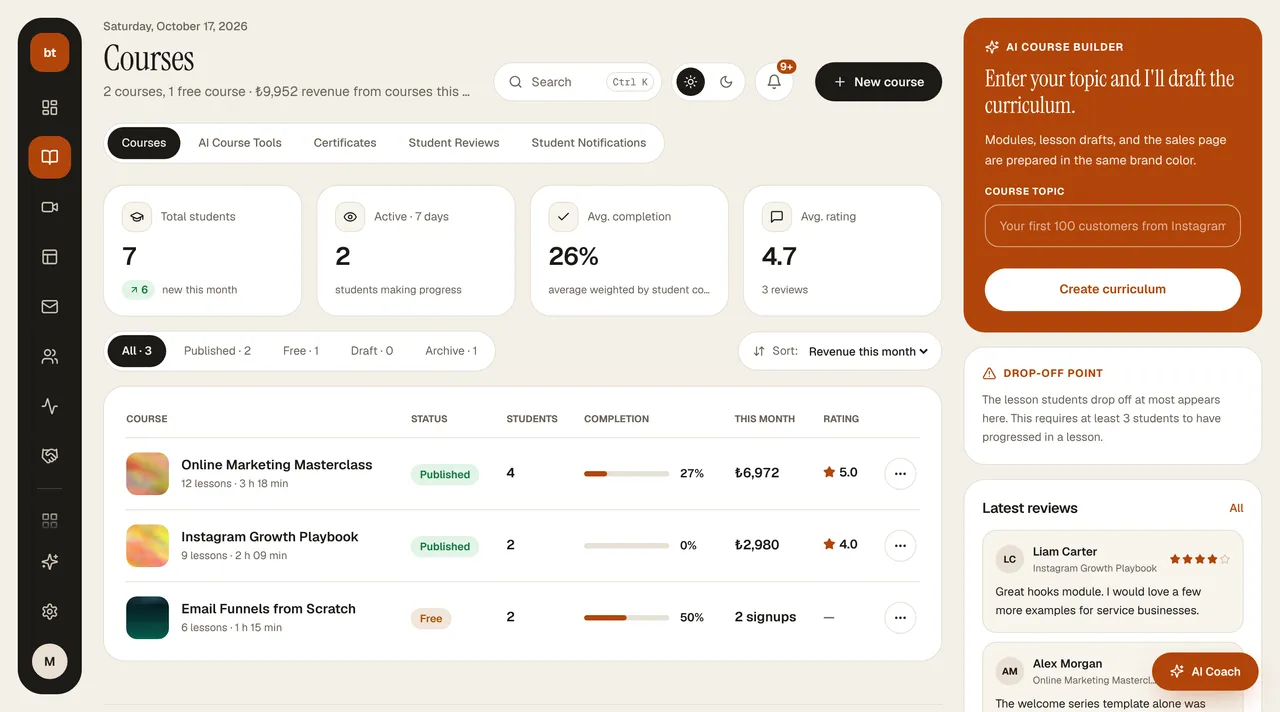
The cards on the right: type your topic into AI Course Builder and click Create curriculum, and the curriculum tool in AI Course Tools opens with that topic. Drop-off point shows the lesson where students quit most often (the share of students who finished the previous lesson but not this one; at least 3 students must have progressed). Latest reviews are the ratings and comments students leave in the portal.
- Courses › New course. Enter a name, a short description, and a level. The course opens as a draft: students and the sales page can't see it.
- Use the Access field to choose who can open the course: Paid (people who buy it get in; enter a price), Membership only (students included in a membership plan get in), or Free (anyone who signs in). A course with no price entered is not treated as free automatically. When it's ready, turn on the Published switch. You can type the price in the Turkish format: "1.500" or "1.500,50".
- Add modules, and add lessons to each module. Lesson types: Video, PDF, Document, and Link.
- Attach content to each lesson: paste a YouTube/Vimeo address into Content URL, or use Upload file (protected) to upload a video, PDF, or document directly. Protected files don't sit at a public address; only a student who bought the course opens them, through a link that is valid for a few hours, and even if the link is shared it stops working quickly. The video duration is read from the file automatically.
- Mark any lessons you want as a preview. On the sales page these lessons show Preview next to them; a signed-in visitor can watch them without buying, the other lessons look locked, and the Buy now button takes them to the sales page.
- Course details › Cover image: Upload (from your computer), From library (Asset Library), or Generate with AI (draws a cover from the course name and your Brand Kit color, 1 AI credit). The cover appears on the sales page, in the portal, and on course cards; don't forget to click Save.
- Publish. The course's own sales page is created at
/kurs/kurs-adiwith your school's name, logo, and color: a title and cover, a sticky price card on the right (Start now), learning outcomes, an expandable curriculum, an instructor section, real student reviews, and a call-to-action banner at the end. Visitors choose light or dark mode.
/kurs/kurs-adi/odeme): the student signs in, enters billing details, chooses card or bank transfer, and applies a coupon. Card details are collected on the secure page of your own iyzico/PayTR account.Course editor
Click a course in the list to open the editor. The header shows the course name and a summary (lessons, modules, total duration, students, status); All courses returns to the list, and the selector next to it switches to another course. Tabs: Curriculum (modules and lessons; opens first), Course details (sales link, term mode, name, description, price, cover), Certificate, and Students (student count, completion, views). The selected tab stays in the address bar.
The right column has Course summary (lessons, duration, students, completion; a warning if any lesson is missing content) and AI tools (suggest curriculum, mini quiz, summary and worksheet, translation); the tools open with the course's name.
Quizzes
Use the AI button on a lesson row to generate a 5-question quiz for that lesson, review the questions, and save. When a student reaches 70%, the lesson counts as completed; their attempts are saved.