Finding your way around the dashboard
The menu sections and what each one is for.
On desktop, a slim icon rail sits on the left: your eight most-used tools (Overview, Courses, Webinars, My Pages, Email & Automation, Contacts, Analytics, Affiliates) are always there. Hover over an icon to see its name. The grid button in the middle of the rail opens the All tools page: every section, tab, and detail page listed below is there, section by section, each with a line on what it does. Use the section buttons at the top (Product, Marketing & Sales, Analytics…) to narrow the list, and choose Card or List view; tools that run on AI carry an AI label. You choose which tools (up to ten) stay on the rail: hover over a tool and click the pin to add it to the rail; click a filled pin to remove it. Pinned tools sit in the Pinned in your menu strip at the top of the page; drag to reorder them, or click Edit menu to reorder with arrows, remove with the ×, and use Reset to default. Your choice and your Card/List preference are saved to your account and look the same on every device. Below it, Recently used shows tools that aren't on the rail but that you opened recently. If you can't find the tool you're looking for, Ask AI Coach takes you to the right place. If you're on a page that isn't on the rail, that page's icon appears on the rail temporarily. At the bottom you'll find AI Coach, Settings, and the account menu; the account menu has your plan, AI credits, storage usage, Help Center, support request, theme color, and sign out. On a narrow screen, the menu opens with the button at the top left.
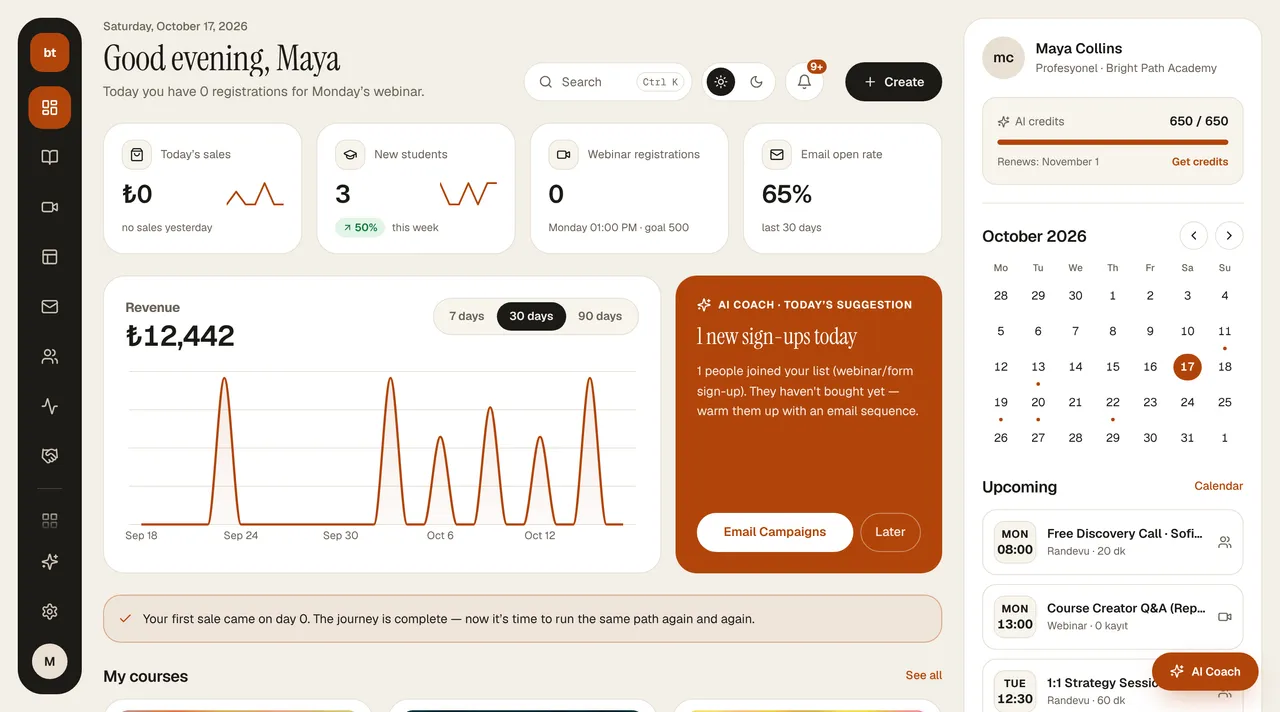
Every page has the same header row: on the left, today's date, the page name, and a short summary; on the right, Search, the light/dark theme switch, notifications, and the page's main button. Clicking Search or pressing ⌘K (Ctrl K on Windows) opens the All tools page with the search box active; type and press Enter to open the first result. Some pages have a summary column on the right; on a narrow screen it moves below the page. Screens that belong together sit as tabs under a single menu entry.
Tabs are in the same place on every page
- Section tabs are a rounded strip right under the header (for example, Overview, Traffic, Sales… in Analytics). The page's controls sit at the right end of the same row: for example, the period picker in Analytics (7, 30, 90 days, 1 year). When the tabs are different views of one thing, the heading is the section name and the selected tab is written at the start of the summary: “Affiliate program · Commissions”. Some tabs show a count: “Payout requests · 3”.
- In Settings, the tabs are stacked on the left: Account & Brand Kit, Domain, Integrations, Team, Notifications, Security, Tracking, Legal texts, Appearance, White Label, Import.
- A page's own tabs: on a page that has a section strip, they're thin underlined tabs (for example, Lead Pipeline and Segments under Contacts › CRM); if there's no section strip, they're the rounded strip under the header (for example, Overview, Campaigns, Automations in Email).
- Pickers inside a card or window are small with a gray background (for example, List / Calendar in Appointments).
The tab you pick stays in the address bar (?sekme=…): when you refresh the page, press the back button, or send the link to someone, the same tab opens.
| Section | What's in it |
|---|---|
| Overview | Dashboard, Revenue & Payments (Revenue, Bank transfer approvals, Invoices, Payment setup), My Account (brand details), My Subscription (plan, AI Agent add-on), and My Features (turn modules on/off, plan limits) |
| Product | Set Up My Business (Setup Wizard and Setup Canvas), Courses (AI Course Tools, Certificates, Student Reviews) |
| Marketing & Sales | My Pages, Funnel, Email & Automation, Social Media (including Ad Studio and UGC ad videos), Sales tools (Coupons, Upsell, Exit popup, A/B testing, Membership) |
| Events | Webinars, Appointments |
| Customers | Contacts (Contacts, Customers, CRM & Leads), Community, Customer Chatbot, Support |
| Studio | Studio (the entry point where you choose what to create), Page Studio, Design Studio, Ebook Builder, Presentations, Asset Library |
| Growth | Analytics: Overview, Traffic, Sales, Customers, Funnel, Email, Social, Events, Course & Video (the stats tabs inside individual pages are collected here), Affiliate program (Affiliates, Commissions, Payout requests, Goals) |
| Settings | A single menu on the left: Account & Brand Kit, Domain, Integrations (status of all external connections), Team, Notifications, Security, Tracking, Legal texts, Appearance, White Label (if your plan includes it), Import |
If you have more than one brand, you switch between them with the brand switcher on the My Account screen. The Help Center opens in a new tab from the account menu and from the link at the bottom of every page.
Using it on your phone
The dashboard works fully on your phone too. The three-line button at the top left opens the menu; it closes by itself when you tap a page. Tabs inside a page slide sideways with your finger: if the edge of the strip looks faded, there are more tabs beyond it, and the tab you select always stays visible. Wide tables scroll sideways too. Buttons on cards drop below the text on a narrow screen, and windows fit the screen and scroll inside.
In this Help Center on a phone, the Menu button at the top opens all topics; Close or tapping a topic closes the menu.
Light and dark theme
The dashboard opens in the light theme the first time. The sun/moon button in the top bar switches the dashboard between light and dark; in Settings › Appearance there's a third option, Same as system (it follows your device's day/night setting). Your choice is remembered in this browser, and it's the same in the entrepreneur dashboard, the platform dashboard, the partner office, and bilgiticareti.com's own pages (home page, sign in/sign up, first-time setup). The pages your customers see and your emails aren't affected. In the student portal, students have their own sun/moon button.
Color theme
In Settings › Appearance there are five color themes: Default, Warm charcoal, Midnight blue, Lavender, and Forest. In light mode only the accent and link color change; in dark mode the background, cards, lines, and text tones are also adjusted to the theme. The Live preview below shows your selection right away. The color theme changes only your dashboard and this device; your student portal, pages, and emails keep showing your Brand Kit color.
Theme color
The colored circle in the top bar and at the bottom of the menu is the accent color currently in use. Click it to open the color canvas; when you pick a color, the dashboard switches to it right away and the canvas closes. This choice changes only how things look on your device; Reset to brand color takes you back to your brand's color. A personal accent chosen here takes priority over the color theme's accent. In Settings › Account & Brand Kit, you change the brand color your customers see with the Brand Color circle.
Confirmation windows
For actions that can't be undone, such as deleting, canceling, refunding, or disconnecting, the dashboard opens its own confirmation window instead of the browser's gray box. The red button carries out the action; Cancel or Esc closes it. For actions that need information (for example, a refund amount or a registration address), a field appears in the window.
Installing the dashboard on your phone
You can use the dashboard like an app on your phone. On iPhone, with the dashboard open in Safari, tap Share › Add to Home Screen; on Android, tap Install app or Add to Home screen in the Chrome menu. When you tap the icon, the dashboard opens without an address bar; long-press it to see shortcuts for Courses, Webinars, and Customers.