Moving your existing business over
Import your subscribers, students, pages, and email sequences, or leave the migration to our team.
If you already run your business on another platform, you don't have to start from scratch. The migration tools are on the Settings › Import page. The page has two doors: on the left, the Door 1 · I'll migrate it myself tabs (Students, Subscriber list, Page, Email sequence, Export), and on the right, the Door 2 · We'll migrate it for you card. The tab you pick stays in the address bar; if you share the link, the same tab opens.
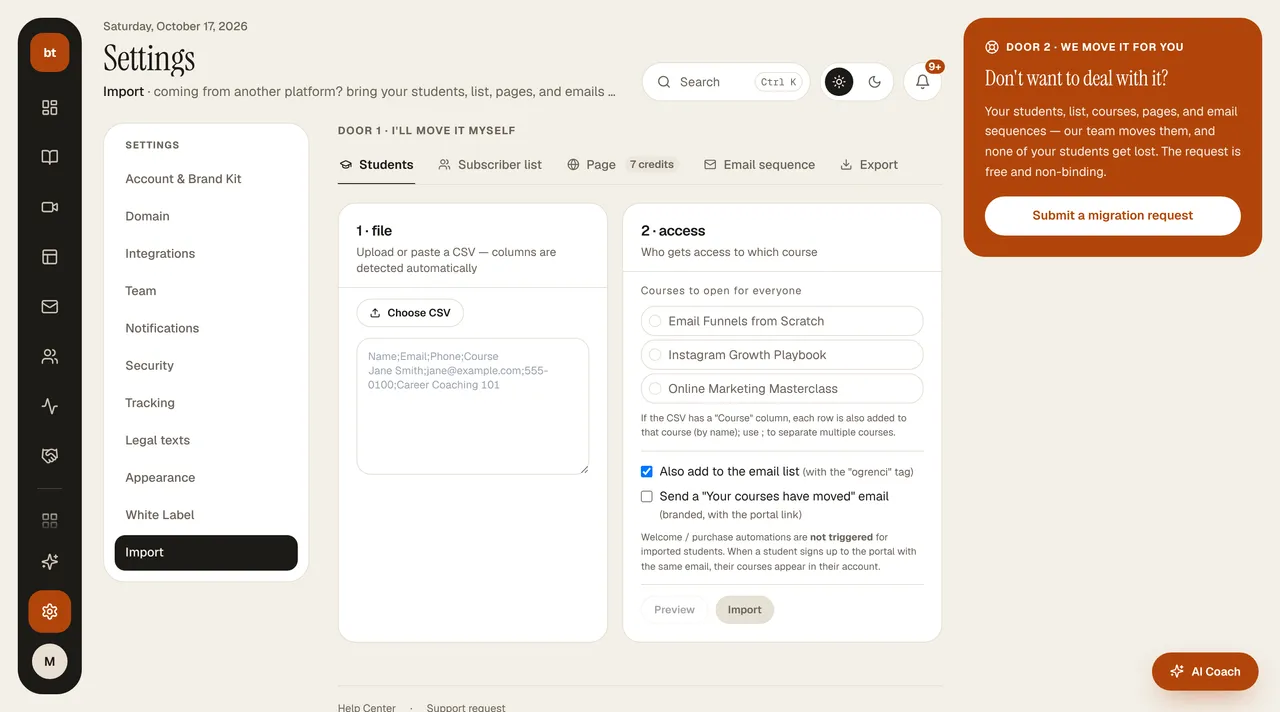
Student and subscriber list (CSV)
- Download the list from your old platform as a CSV. It needs at least an email column; if there are name, phone, and course columns, those are imported too.
- On the Import page, upload the CSV, map the columns, and add a tag if you like.
- The same email is saved only once per brand; emails already on your list are skipped.
Move a page from your site
Enter the address of your existing page. Its content is read and turned into a page you can edit in Page Studio. This uses 7 credits.
Move an email sequence
Paste your old email sequence. The texts are set up unchanged as a series and an automation; for safety the automation starts off, and you review it and turn it on. No credits are used for texts that follow the expected format; if AI has to parse them, it costs 1 credit.
We'll migrate it for you
On the “We'll migrate it for you” card on the right side of the Import page, click Submit a migration request and enter the source platform, the scope, and the size. Our team will contact you and send a quote. You can follow the status of your request (Received, Discussed, Quote ready, Migrating, Completed) on the same card. While you have an open request, a new one can't be created; the existing request is updated instead.