Setup Canvas
See every part of your business on one big canvas, then edit and publish it.
The Setup Canvas shows everything the wizard built as a flow: sales page, course, thank-you page, free content, email series, appointment, and upsell. The canvas zooms in and out and can be dragged around.
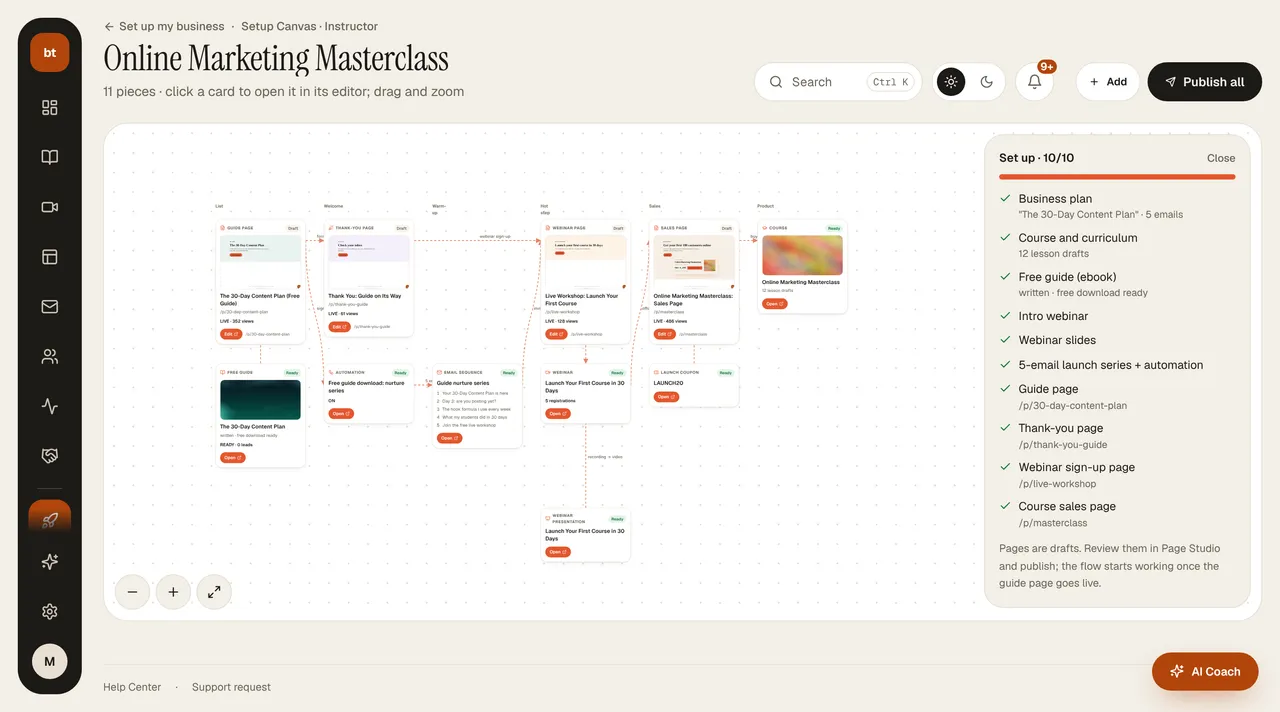
What you can do on the canvas
- Live numbers appear on the cards (views, leads, appointments, sign-ups). Click a card and a drawer opens on the right; you can edit the emails, automation, price, and date without leaving the canvas, preview the page, or publish it.
- Use + Add to connect platform modules to the flow: a launch coupon (a time-limited discount code) and a 5-post social launch series (scheduled if you have a connected account, otherwise left as a draft). For setups with a course, you can also add a post-purchase thank-you page, an upsell offer, a paid one-on-one session, and a community invite page. Everything you add becomes a card on the canvas and is linked to the relevant cards with arrows.
- If a page could not be generated, the card shows an Error badge and the reason. The card's Regenerate button, or Complete missing items in the right panel, regenerates only the missing pages with the same brief, and no credits are charged. If the cause is the platform's AI provider (balance, key), it is automatically passed on to the administrator; once it is fixed, you continue with the same button.
- Use Publish all to publish every draft page at once.
- The Next step suggestion is the next task the AI Coach picks for you after looking at what is missing on the canvas.
TipThe numbers on the canvas come from the same source as the rest of the dashboard. The visit count you see on the canvas is the same in Analytics.