Customer conversations and support tickets
Reply to conversations the chatbot handed off and manage support tickets.
Conversations handed off by the chatbot
When the chatbot on your site can't answer a question, or a visitor wants to talk to a person, the conversation lands in the Customer Chatbot screen, in the Conversations tab, with the status “Handed off.”
- When you open a conversation, you see the earlier exchange with the chatbot and write your reply from the same screen.
- You see the breakdown of handoff reasons in the Analytics tab.
- Add frequently asked questions to the chatbot's knowledge source so it can answer them itself next time.
Support tickets
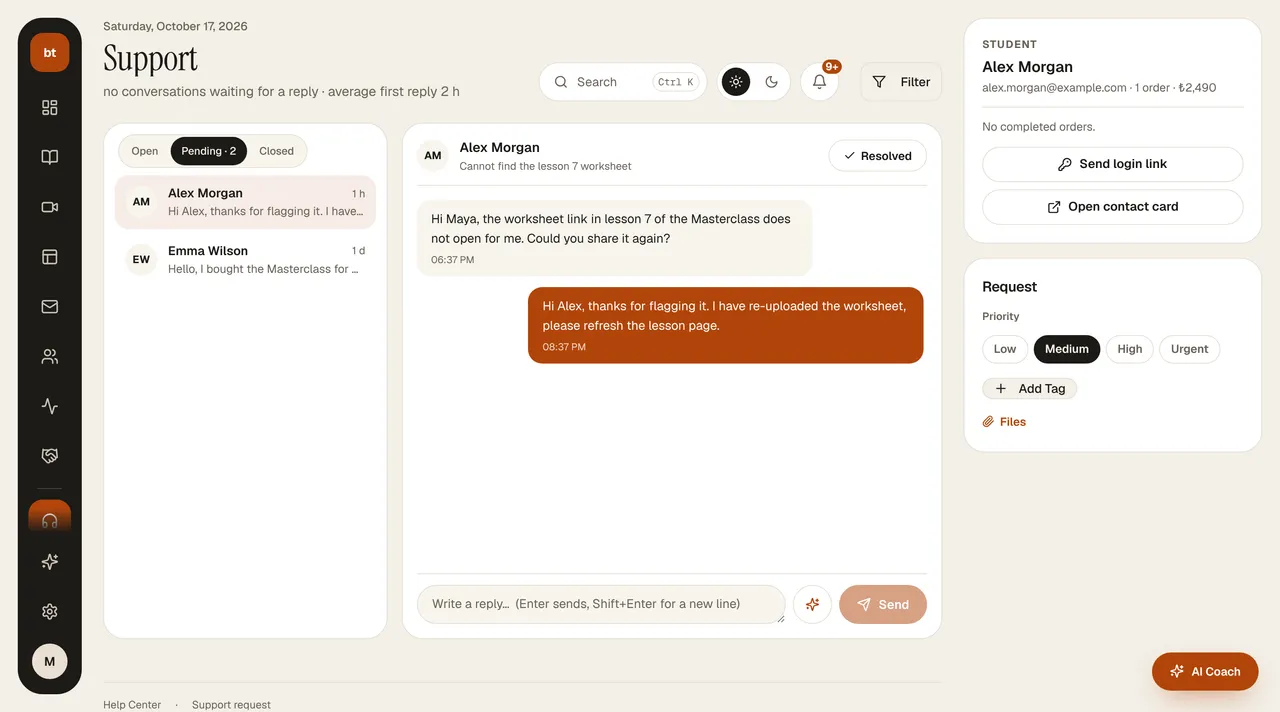
The Customers › Support screen shows requests from your students like a message inbox. In the header you see how many conversations are awaiting a reply and your average first response time over the last 30 days.
- Conversations on the left are in three tabs: Open (the last message is from the student, awaiting your reply), Pending (the last message is yours, awaiting the student's reply), Closed (resolved).
- The thread in the middle. Enter sends, Shift+Enter moves to a new line. The star button hands the conversation to AI Coach and asks for a draft reply. On topics such as access, invoices, refunds, and installments, a short tip appears below the thread. When the issue is resolved, press Resolved; if needed, Reopen.
- Student card on the right: their orders and spending. Send login link emails the student a branded login (new password) link valid for 1 hour, to their own email address; you never see the link. Open contact card takes you to the timeline in Contacts.
- Ticket card: priority (low, medium, high, urgent), tags, and file attachments.
A problem with the platform?For questions about Bilgi Ticareti itself, create a support request; that request comes to us and doesn't land in your customers' inbox.